
Scheduling of VNETS classes will now happen through our Registration app, found at https://scheduler.ecboces.org.
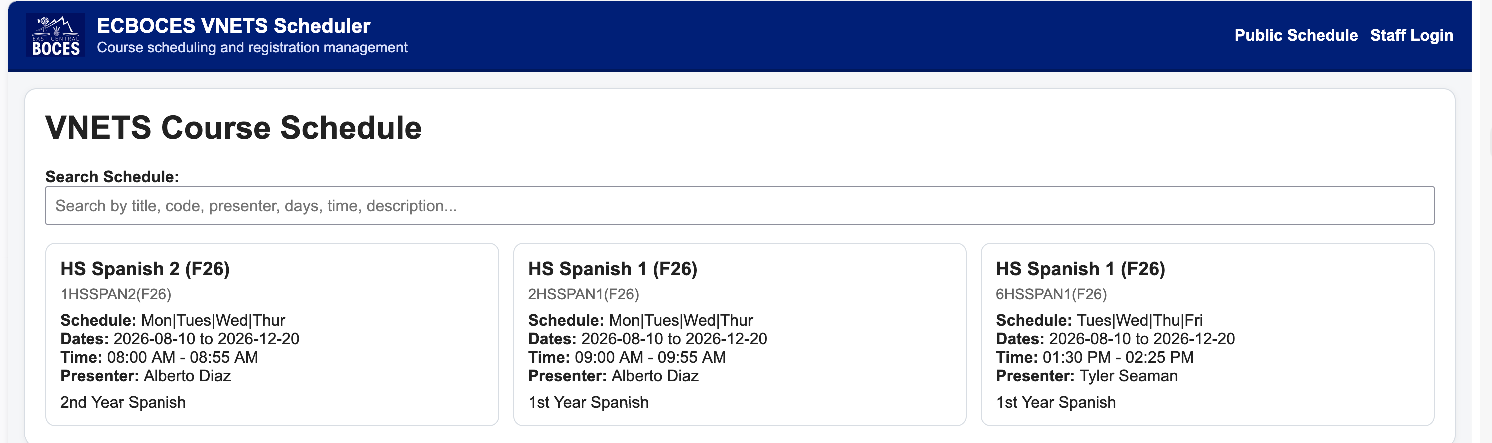
If you are an approved scheduler for your District, use the Staff Login option to log in with your ECBOCES login credentials.
Once logged in, you should be directed to this page:
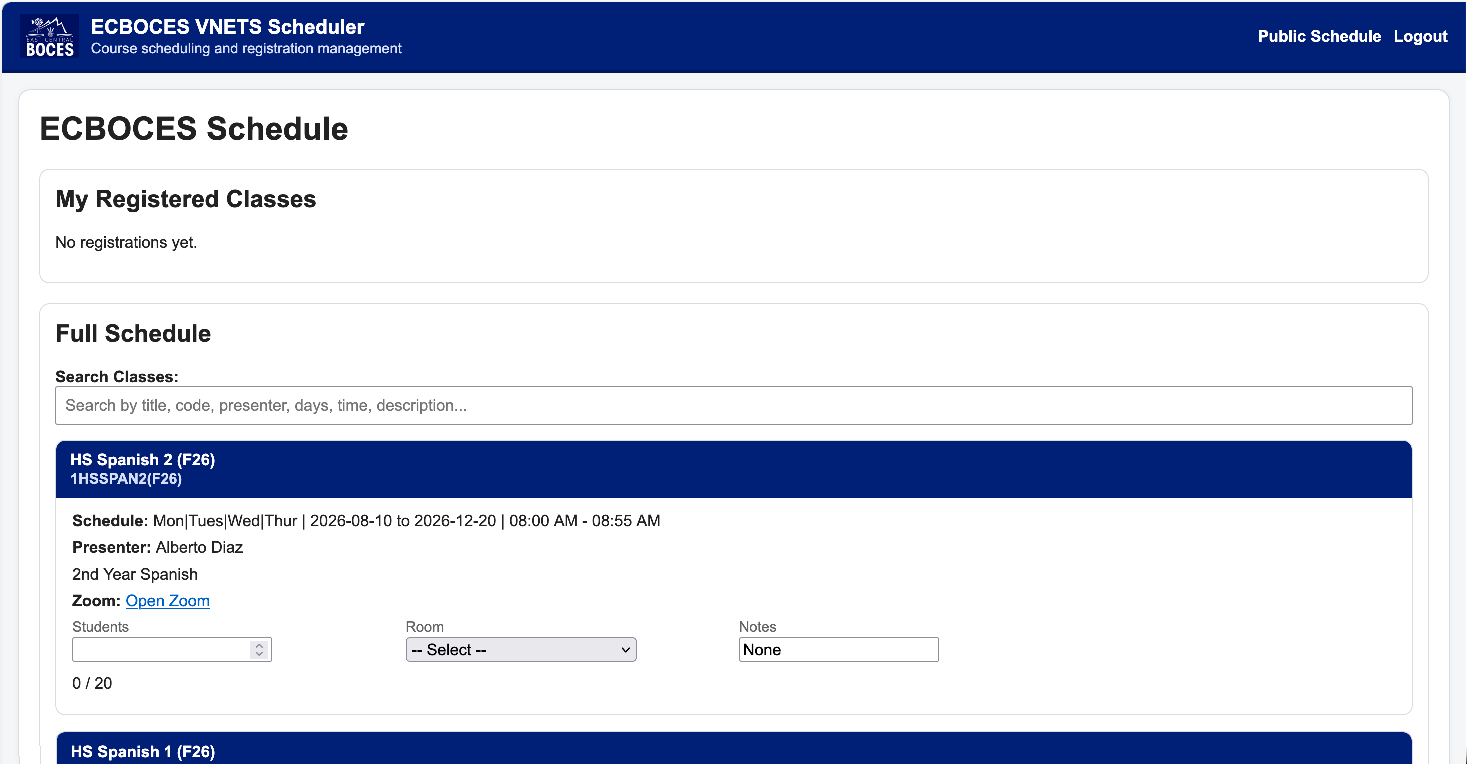
At the top you will any classes that you have already registered for. The full schedule is below - you can search for specific classes using the search bar.
To register for a class you MUST enter both a number for students and the VNETS room that you wish the class to be broadcast to. If students are just going to connect from a computer, just select Computer Only for the Room.
You will see an error if both fields are not completed. Once both are entered, you should see Saved at the bottom.
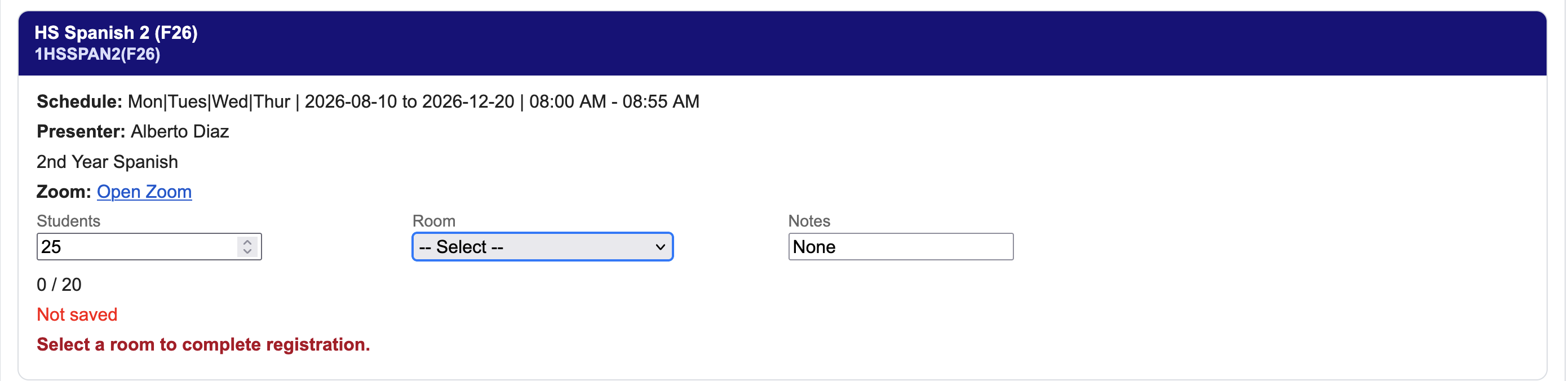
You can come back at any time and make changes to this schedule (for example if you want to change a room around). This will actually update the conference schedule automatically.
Due to Google Calendar (which is what we use to schedule VNETS classes) scheduling restrictions, you cannot schedule two classes at the same time in one room. So in order to switch rooms, you would need to change both to computer only and then go back and select the correct room for each course. This allows Google to clear the room schedule before you add it to a different course.If you have any trouble, please contact the ECBOCES Helpdesk (help@ecboces.org) to get assistance.